Advance usage
Now you're familier with Feature Switches, this doc dives into the more advance usage of the tool. Below will walk through how to roll out your code in two different ways:
- Percentage rollout, where you can slowly ramp up the usage of a feature / section of code
- Rules; where you can bucket a user or group of users to recieve different values.
Percentage Rollout
Binary switches are great to blanket enable or disable features. But on some occasions its good to slowly release the feature to your users. You may do this to ensure things are working as expected for a small number of users before enabling it for everyone. That's where Percentage Rollouts come in!
Setting up the SDK
Percentage Rollout relies on each requester having a consistent, unique ID. This might be a user id, a session id, or some other unique identifier. We need this to ensure that a second request gets the same result as the first.
For example; user A logs into the site. They have an id of "123". We then send this ID when getting our feature switch value, and dev-team-tools will bucket the user into either true or false automatically.
All subsequent requests will return the same response, until the percentage of the rollout is changed to a point where it also includes this user.
Below is the Node SDK example of how to request a switch with a user id attached.
const request = {
  userId: "123"
}

const result = await manager.getSwitchValue("photoUploadEnabled", request);

if(result.value) {
  // switch is on
} else {
  // switch is off
}
The UI
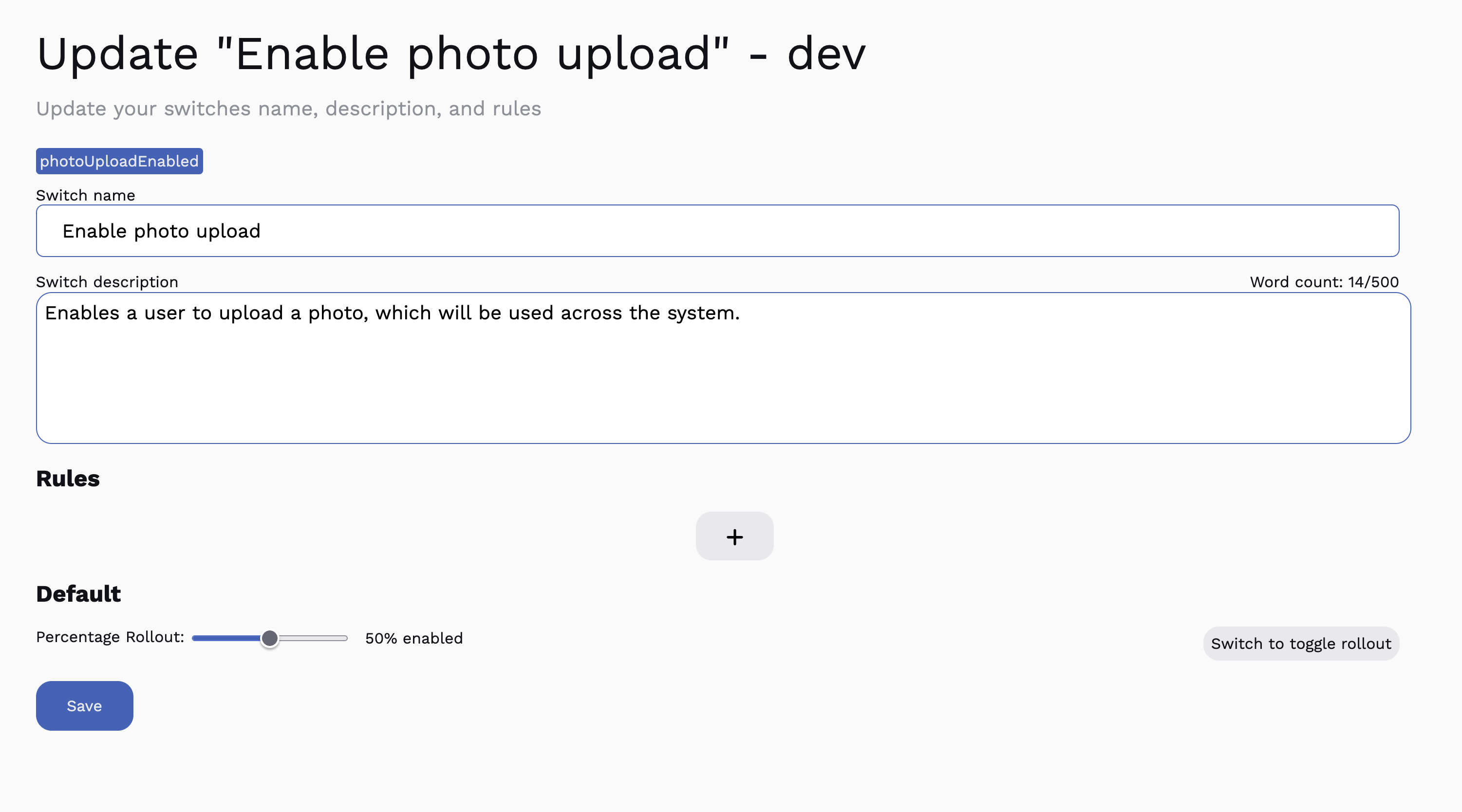
Once our BE is set up and is sending consistent and unique ids, we need to set the switch to Percentage Rollout.
- Navigate to the environment and switch you wish to change
- Under Default, click
Switch to percentage rollout - Select the percentage (0% being false for all, and 100% being true for all)
- Click Save; the switch should now be in the percentage rollout mode
Rules
Rules are the most complex usage of this tool, but also the most powerful. Rules are useful for:
- Specifing a single user to have a switch turned on, maybe for testing
- A company having a switch enabled, to get feedback from a collection of real users
Lets create an example where we want every user in a single company to receive the same result.
Example - all users within a company
First, lets create a switch called "Enabled For Company" with a key of "enabledForCompany". Leave the default value as off. Go ahead and save the switch.
Please don't name your switches like this in the future. They should be named descriptively.
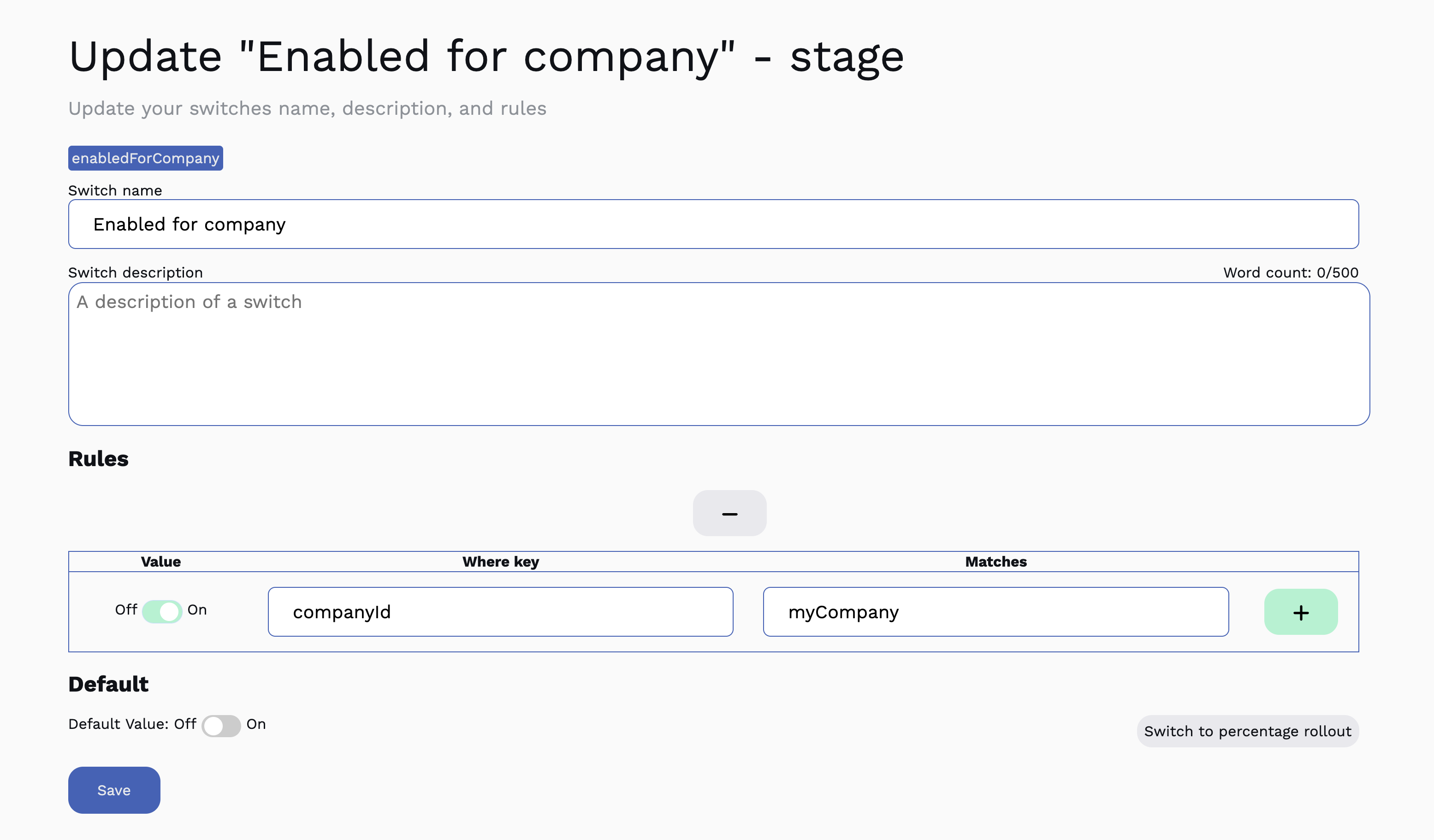
Once your switch has been created, click Edit.
Under Rules, click the + symbol and:
- Set the value to
true - Set the where to
companyId - Set the value to
myCompany(this would usually be a UUID or something, but for this example, lets make it readable) - Click the green
+symbol - Click
Save
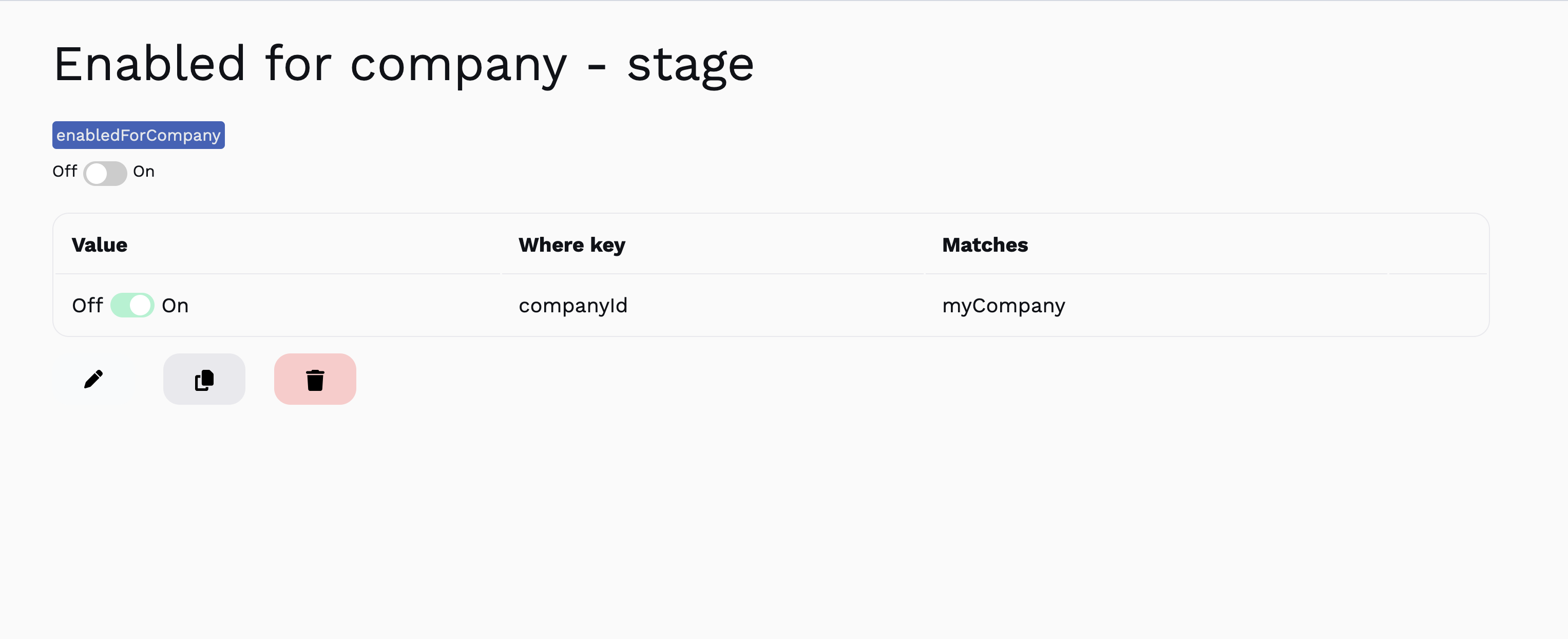
You should now see the rule displayed!
Continuing with the use of the JavaScript SDK, we'll need to set the companyId in the request object we send to the manager.
const request = {
  userId: "123",
  context:
  [ {
    key: "companyId",
    value: "myCompany"
  }]
}

const result = await manager.getSwitchValue("enabledForCompany", request);

if(result.value) {
  // switch is on
} else {
  // switch is off
}
The result should now always return true, as we've set the context to contain myCompany under the context of companyId.
In "real life", we wouldn't hard code the companyId (unless you need to), and instead it would be derived at runtime.
Precidence and Rule ordering
The basic switch value precidence is:
- If the request matches
userId- this value is used (could be true or false) - If the request
contextmatches any items that return true, true is returned. - Percentage rollout (assuming a
userIdhas been supplied and is consistent), else a random result is returned. - Default Value
The above should help you determine what value a switch will return, based on what you've sent.
Some examples:
Example: User ID Matches
You've got two rules set up:
- return
truewhenuserIdis "321" - Return
truewhencompanyIdis "test"
And you've also got Percentage Rollout enabled.
const request = {
  userId: "321",
  context:
  [ {
    key: "companyId",
    value: "myCompany"
  }]
}

const result = await manager.getSwitchValue("enabledForCompany", request);

if(result.value) {
  // Switch would return as TRUE
} else {
  // Would not end up in here
}
The switch would always return true, as the userId matches.
However, if you had a different userid, but the companyId was set to test, it would still return true.
If neither of these matched, then the result may be true or false based on the Percentage Rollout rule.